
How to Configure a HighProxies SOCKS5 Proxy in ixBrowser
Follow this step-by-step guide to add your HighProxies SOCKS5 proxy to ixBrowser, create an isolated browser profile, and test that your proxy IP is working correctly.
What Is ixBrowser?
ixBrowser is an anti-detect browser used to create separate browser profiles for different accounts, projects, or team members. Each profile can have its own fingerprint settings and proxy configuration, which helps separate browsing sessions and reduce account overlap.
When used with a dedicated SOCKS5 proxy from HighProxies, ixBrowser can route a specific browser profile through a specific proxy IP. This is useful for social media management, e-commerce workflows, traffic arbitrage, testing, and other multi-profile operations where browser isolation matters.
Separate Profiles
Create independent browser profiles instead of mixing all activity inside one browser.
Proxy Support
Add your HighProxies SOCKS5 proxy directly inside the profile settings.
Team Workflow
Manage profiles, permissions, and access for team members from one browser environment.
Before You Start
You need an active HighProxies SOCKS5 proxy and your proxy login details from the HighProxies control panel. Do not type the username and password manually if you can avoid it. Copy and paste them to prevent login errors.
| Required Detail | Where to Find It |
|---|---|
| Proxy IP / Host | Your HighProxies proxy list or proxy control panel |
| Proxy Port | Your HighProxies proxy list or proxy control panel |
| Proxy Username | HighProxies control panel |
| Proxy Password | HighProxies control panel |
| Proxy Type | SOCKS5 |
Example used in this guide: 213.139.196.104:31290. Replace it with your own proxy IP and port from your account.
Step-by-Step SOCKS5 Setup in ixBrowser
Download ixBrowser
Go to the official ixBrowser download page, install the software, and log in to your ixBrowser account.
Create a New Profile
Open ixBrowser and click New Profile. This profile will be configured to use your HighProxies SOCKS5 proxy.
Add Proxy Details
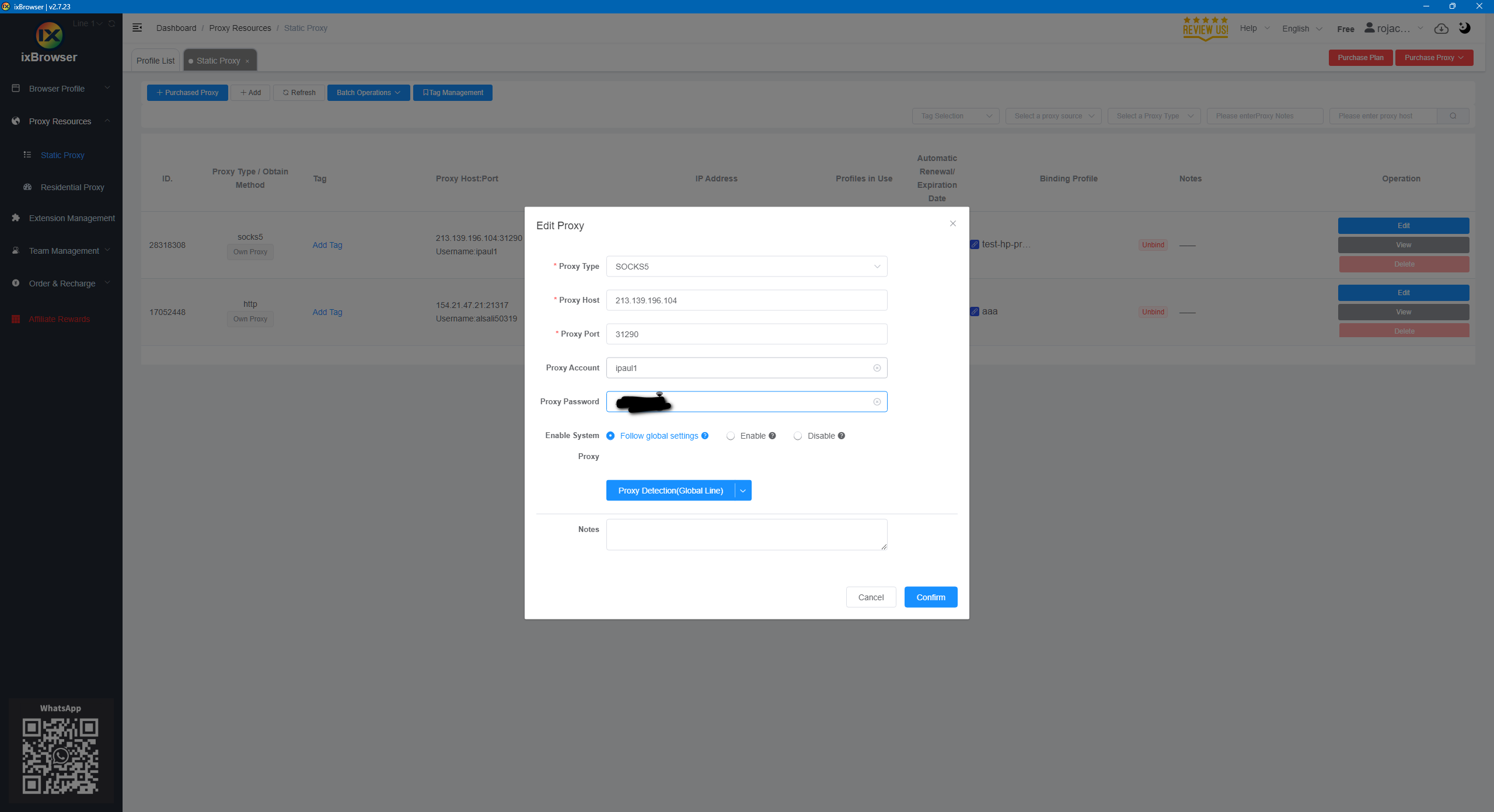
Select SOCKS5 as the proxy type, then enter your proxy IP, port, username, and password.
Launch and Test
Start the profile and test the visible IP address with a browser fingerprint or IP checking tool.
Step 1: Download and Open ixBrowser
Download ixBrowser from the official website, install it, and open the application. After logging in, you can create a dedicated browser profile for your HighProxies SOCKS5 proxy.
Open ixBrowser and prepare to create a new browser profile.
Step 2: Create a New Browser Profile
Inside ixBrowser, click New Profile. A separate profile helps keep browser fingerprints, cookies, sessions, and proxy settings isolated from other profiles.
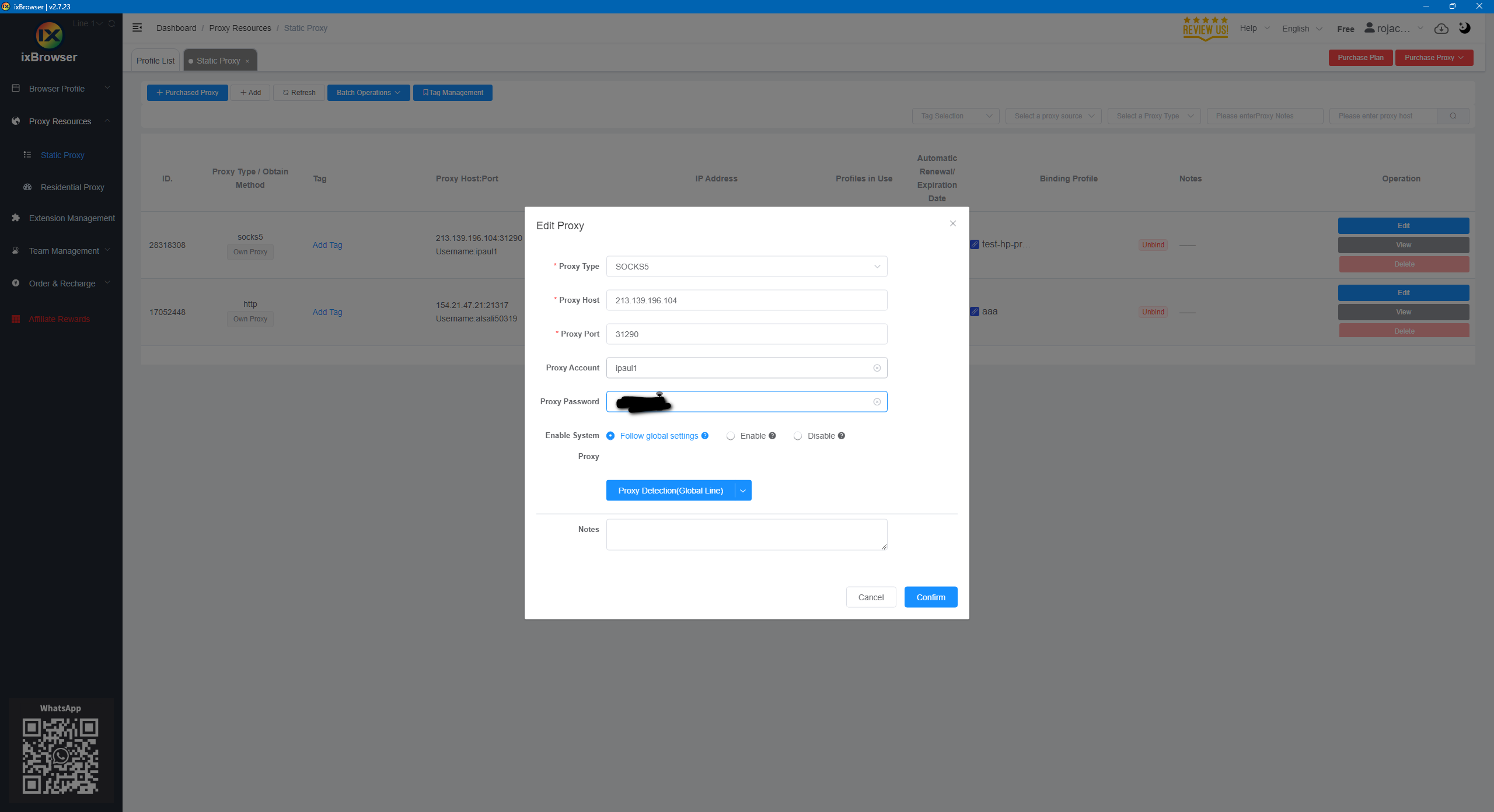
Create a new profile before adding the SOCKS5 proxy.
Step 3: Configure the HighProxies SOCKS5 Proxy
In the proxy settings area, select SOCKS5 and enter your proxy details exactly as shown in your HighProxies control panel. The most common mistake is entering the wrong proxy type, wrong port, or mistyping the username/password.
| Field | Value |
|---|---|
| Proxy Type | SOCKS5 |
| IP / Host | 213.139.196.104 |
| Port | 31290 |
| Username | Check your proxy control panel |
| Password | Check your proxy control panel |
Step 4: Test Proxy Visibility
After saving the profile, launch it and visit BrowserScan or another IP/fingerprint checking website. Confirm that the displayed IP address and location match your proxy details.
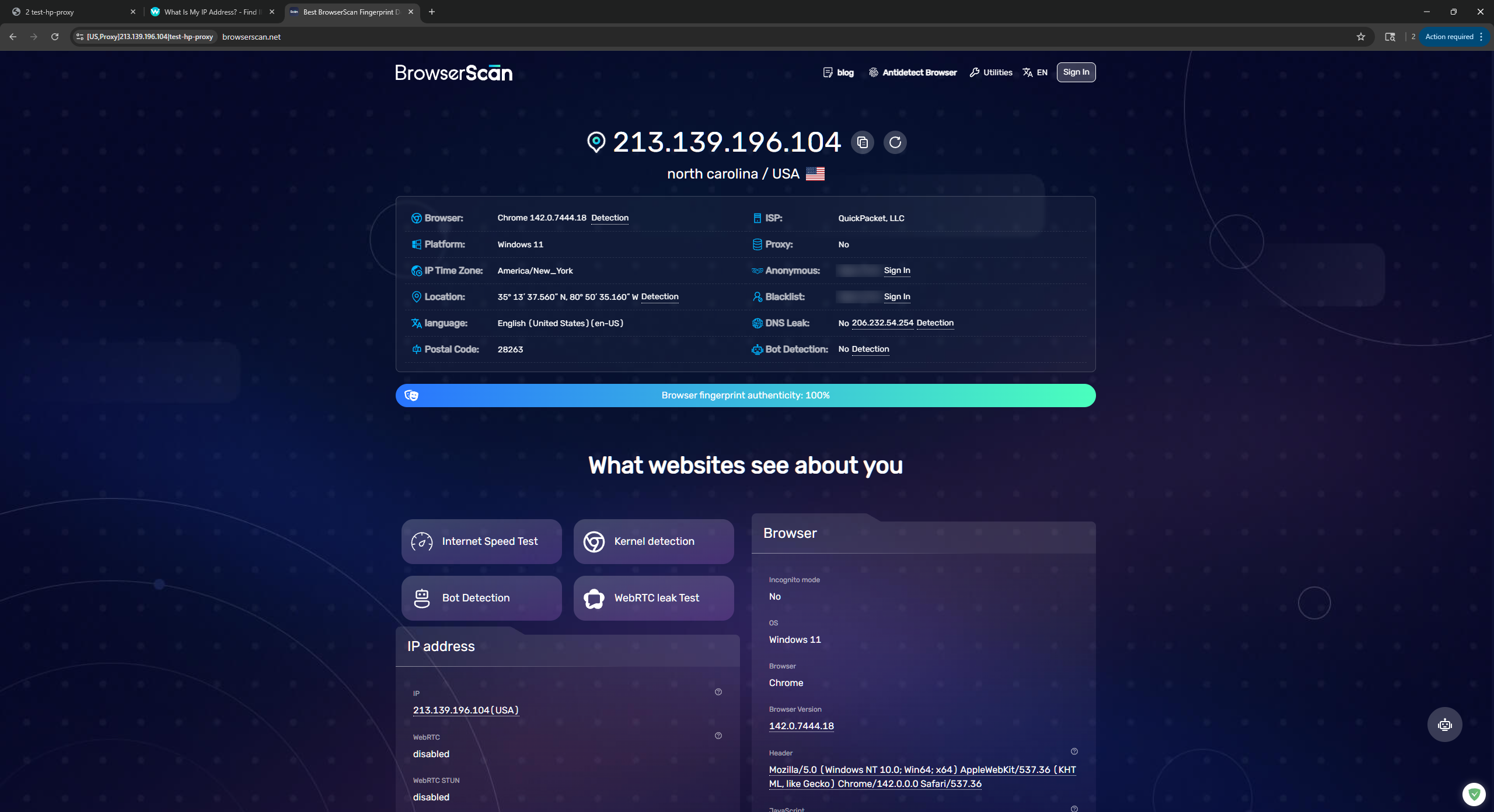
Test the profile and confirm that the proxy IP is visible.
Troubleshooting Common SOCKS5 Proxy Problems
- Proxy does not connect: Check that the proxy type is set to SOCKS5, not HTTP or HTTPS.
- Authentication failed: Copy and paste the username and password from the HighProxies control panel.
- Wrong IP is displayed: Make sure you launched the correct ixBrowser profile and saved the proxy settings.
- Connection is unstable: Test the proxy outside ixBrowser first, then re-check the profile settings.
- Website blocks access: The proxy may be working, but the target website may have its own detection or restriction rules.
Need SOCKS5 Proxies for ixBrowser?
HighProxies provides private SOCKS5 proxies that can be used with anti-detect browsers, browser profiles, automation tools, and account management workflows.
Frequently Asked Questions
Can I use HighProxies SOCKS5 proxies with ixBrowser?
Yes. ixBrowser supports SOCKS5 proxy configuration, and you can add your HighProxies proxy IP, port, username, and password inside the browser profile settings.
Should I use SOCKS5 or HTTP proxies in ixBrowser?
Use the proxy type assigned to your service. If your HighProxies product is SOCKS5, select SOCKS5 in ixBrowser. Using the wrong proxy type is one of the most common setup mistakes.
Where do I find my proxy username and password?
You can find your proxy login details inside the HighProxies proxy control panel.
How do I know the proxy is working?
Launch the ixBrowser profile and check the visible IP address with BrowserScan or another IP checking website. The IP shown should match your proxy, not your real internet connection.