
FoxyProxy is a free browser extension for Chrome and Firefox that lets you add proxies once and switch between them in two clicks, without touching system-wide network settings. This guide shows how to install it, add your HighProxies private proxies, route only selected websites through a proxy, verify the connection and fix the most common errors.
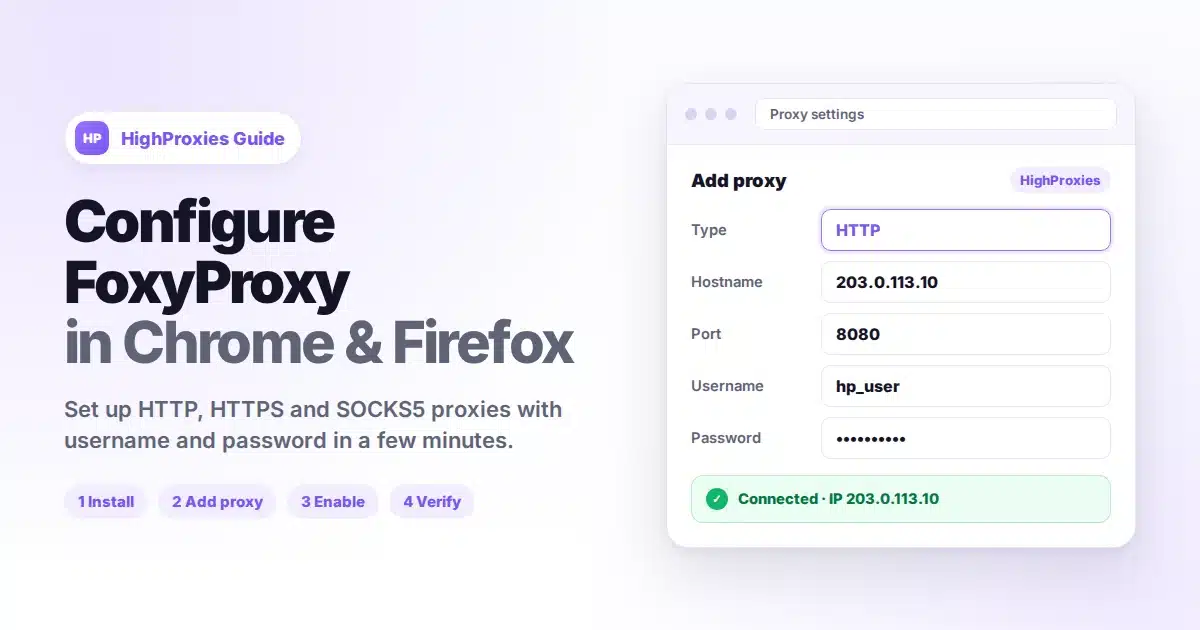
Quick answer: install FoxyProxy from the Chrome Web Store or Firefox Add-ons, open Options, go to Proxies, click Add, enter the proxy type, IP address, port, username and password from your HighProxies client area, click Save, then select the proxy from the FoxyProxy toolbar menu. Visit an IP checker to confirm the browser now shows your proxy IP.
Have these details ready. All of them are listed in your HighProxies client area under your active proxy service.
| Field | Example | Where to find it |
|---|---|---|
| Proxy IP address | 203.0.113.10 | Proxy list in your client area |
| Port | 8080 | Next to each proxy IP |
| Username | hp_user | Service details page |
| Password | •••••••• | Service details page |
| Protocol | HTTP or SOCKS5 | The product you ordered |
Never share your proxy credentials. The values above are documentation examples. Anyone with your IP, port, username and password can use your dedicated proxies.
Chromium-based browsers such as Microsoft Edge, Brave and Opera can install FoxyProxy from the Chrome Web Store as well. The setup steps below are identical.
HighProxies US 01HTTP (or SOCKS5 if you ordered SOCKS5 proxies)203.0.113.108080Choose HTTP, not HTTPS. HighProxies HTTP proxies already handle HTTPS websites securely through the CONNECT method. The HTTPS type in FoxyProxy means an encrypted connection to the proxy server itself, which standard HTTP proxies do not expect and which causes connection errors.
If the browser asks for a username and password, enter the credentials from your client area. A prompt that keeps reappearing means the credentials are wrong or contain a typo.
203.0.113.10.Done. If the IP checker shows your proxy IP, FoxyProxy is configured correctly and your browser traffic is routed through HighProxies.
Routing everything through a proxy is not always what you want. With Proxy by Patterns, FoxyProxy sends only matching websites through the proxy and loads everything else directly.
*.example.com with type Wildcard.This is ideal when you manage one marketplace or social account per proxy and want your banking, email and everyday browsing to stay on your own connection.
| Type | Username and password | When to use it |
|---|---|---|
| HTTP | Chrome and Firefox | Default choice for HighProxies HTTP proxies. Works for both HTTP and HTTPS websites. |
| HTTPS | Chrome and Firefox | Only for proxy servers that accept TLS connections to the proxy itself. Not for standard HTTP proxies. |
| SOCKS5 | Firefox only | Protocol-agnostic proxies. Chrome cannot send SOCKS5 credentials, so use HTTP proxies in Chrome when authentication is required. |
DE 03 - Marketplace.Need one IP per account or per market? HighProxies private proxies are dedicated datacenter IPv4 addresses assigned exclusively to you, with HTTP(S) and SOCKS5 support and locations across the United States, Europe and Japan.
| Problem | Likely cause | Fix |
|---|---|---|
| Login prompt keeps appearing | Wrong username or password | Copy the credentials again from your client area, without spaces |
| HTTP 407 Proxy Authentication Required | Credentials missing or incorrect | Enter username and password in the proxy settings and save |
| ERR_PROXY_CONNECTION_FAILED | Wrong IP, wrong port or a firewall blocking the port | Check IP and port, then test from another network |
| ERR_TUNNEL_CONNECTION_FAILED | Type set to HTTPS instead of HTTP | Change the proxy type to HTTP |
| IP checker still shows your real IP | Proxy not selected, pattern not matching, or another extension or VPN controls proxy settings | Select the proxy in the menu and disable other proxy or VPN extensions |
| SOCKS5 not working in Chrome | Chrome does not support SOCKS5 authentication | Use the HTTP proxy type in Chrome or use Firefox for SOCKS5 |
| Slow page loads | Proxy far from the target website or your location | Pick a proxy in a location closer to the sites you visit |
Still stuck? Open a ticket from your client area with the proxy IP, browser name and a screenshot of the error, and our support team will check the proxy server side.
Yes. FoxyProxy is a free extension for Chrome, Firefox and other Chromium-based browsers. You only pay for the proxies you use with it.
Select HTTP for HighProxies HTTP proxies. They handle HTTPS websites as well. Select SOCKS5 only if you ordered SOCKS5 proxies, and use Firefox if authentication is required.
Yes. Enter the username and password in the proxy settings. Chrome supports credentials for HTTP and HTTPS proxies only, while Firefox also supports them for SOCKS5.
Yes. Add include patterns to each proxy and switch FoxyProxy to Proxy by Patterns mode. Matching websites use the assigned proxy and all other traffic connects directly.
Usually the proxy is not selected in the menu, the pattern does not match the site, or another extension or VPN is controlling the browser proxy settings. Disable conflicting extensions and select the proxy again.
No. FoxyProxy only affects the browser where it is installed. Other applications keep using your normal internet connection.
HighProxies private proxies are dedicated datacenter IPv4 addresses with HTTP(S) and SOCKS5 support, assigned exclusively to you and ready to paste into FoxyProxy in minutes.